 PledgeBox
Prepare your first InBox email campaign
Prepare a backer update for your own audience. Set the subject, choose recipients and review the message in Sandbox before sending.
Before you start
Open Email Marketing in your Creator workspace. Start in Sandbox for a test using the PledgeBox sender domain. Use only your own test contacts. Production sending requires the relevant sender and Amazon SES setup.
-
Set the campaign details
Open Sandbox → Create Campaign. Enter an internal campaign name, a clear subject line, preview text and a From name. Check how the sender and subject will appear to recipients.
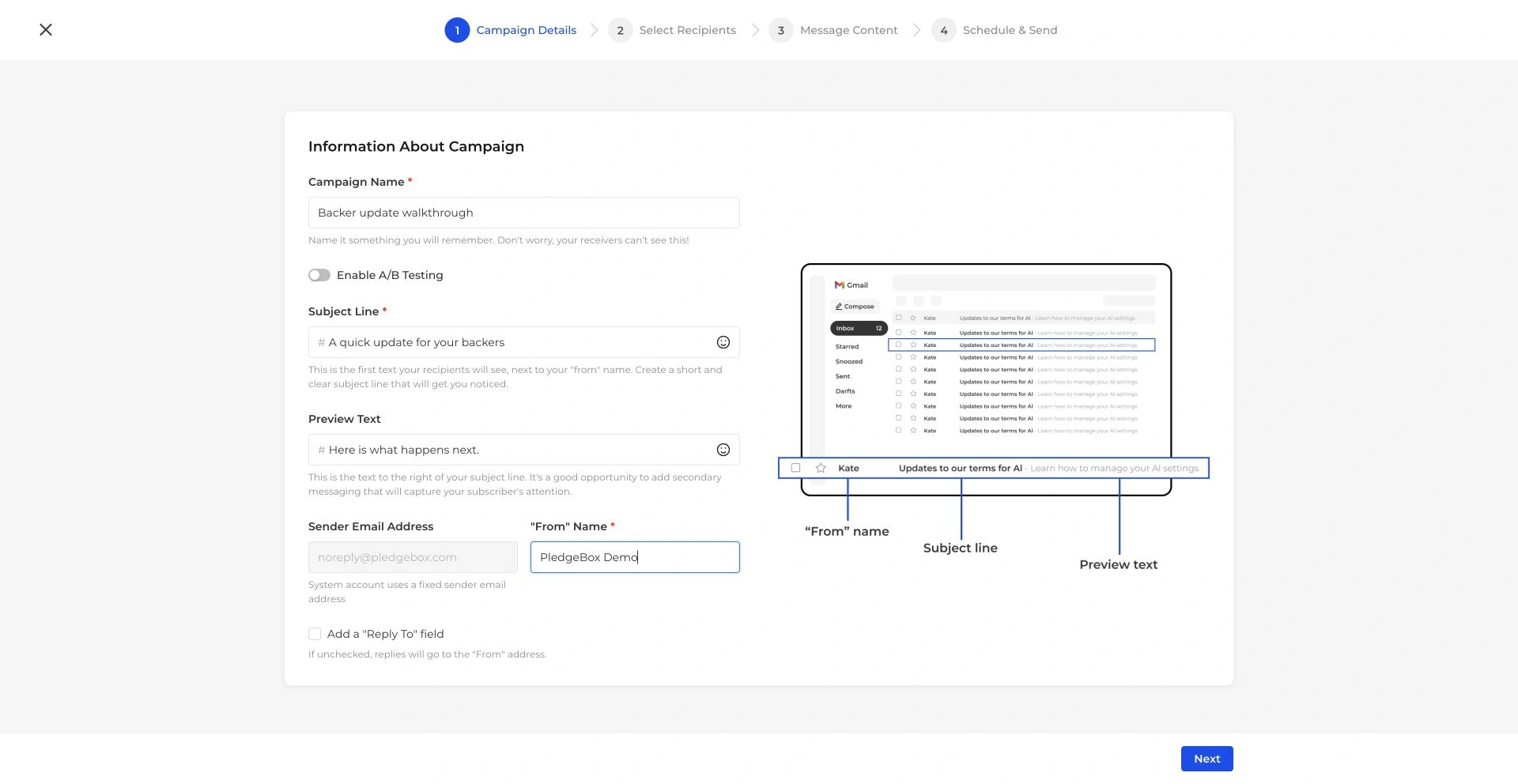
Campaign Details in the public Creator Demo. The subject and preview text are shown beside the sender in the recipient’s inbox. View full-size screenshot ↗ -
Select and check recipients
Choose your mailing list. Use exclusions or a saved segment where needed, then check the recipient count. For a first test, select only a list containing contacts you control.
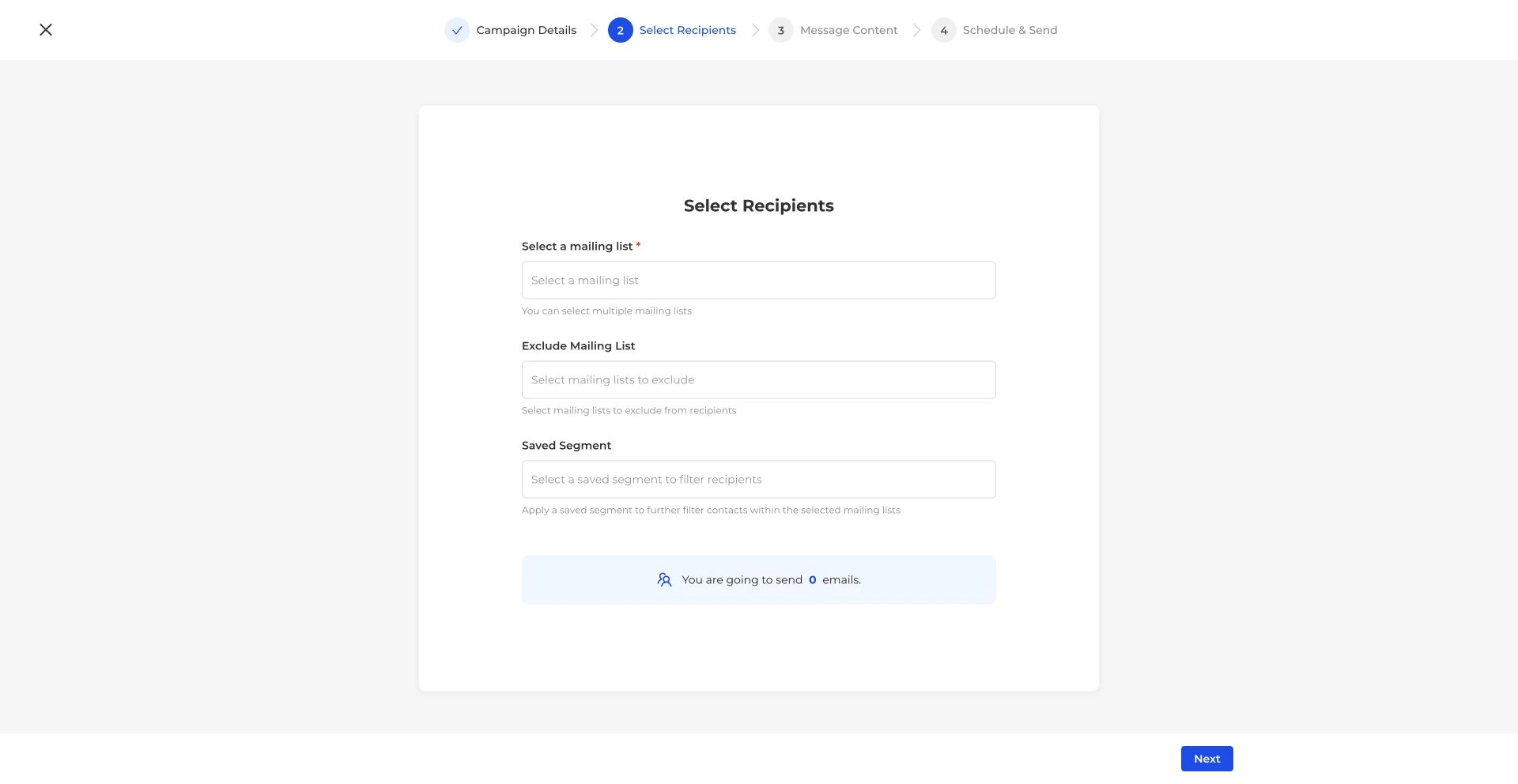
Select Recipients controls who receives the campaign. This screen shows zero selected recipients. View full-size screenshot ↗ -
Review the message before sending
Continue to Message Content and choose your template. In Schedule & Send, review the sender, subject, recipients and message together. Use Save as Draft while preparing. Send a test only to your own approved test list, then check delivery before a production campaign.
Check the result
The subject, sender and message are correct, and the recipients are the people you intended. A saved draft or preview does not prove delivery; check the received email after an approved test send.